How do I send a sequence with ProgressionLive?
Send a sequence when a Progression Live task reaches a chosen state.
Send a sequence when a Progression Live task reaches a chosen state.
Enter your Subdomain, Username and Password, then select Connect Progression Live. InputKit registers the callback automatically.
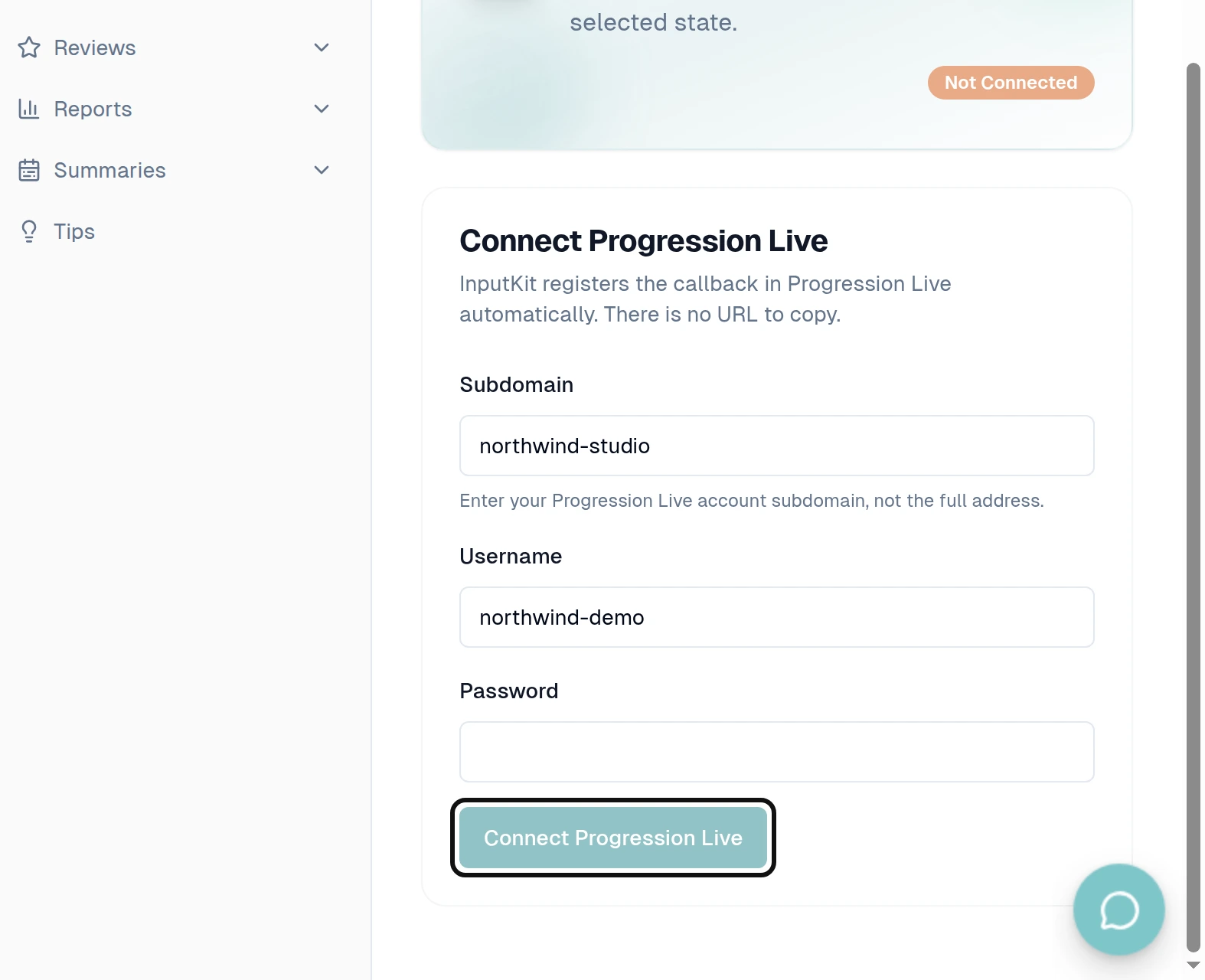
Once connected, select Add trigger.
Choose Task updated, then choose the task type and state.
Choose the Sequence, location and timing.
On the mapping step, enter a Progression Live task code and select Load properties to add that task's custom fields to the list.
Map the fields you want to use.
On the filters step, choose any available field from the mapping step and set the condition you want.
Save the trigger.
The task type and state cannot be changed on an existing trigger. Create another trigger if you need different criteria.