How do I send a sequence with Activix?
Connect Activix and choose when a sequence is sent.
Connect Activix and choose when a sequence is sent.
Select Download Chrome extension and install the InputKit extension.
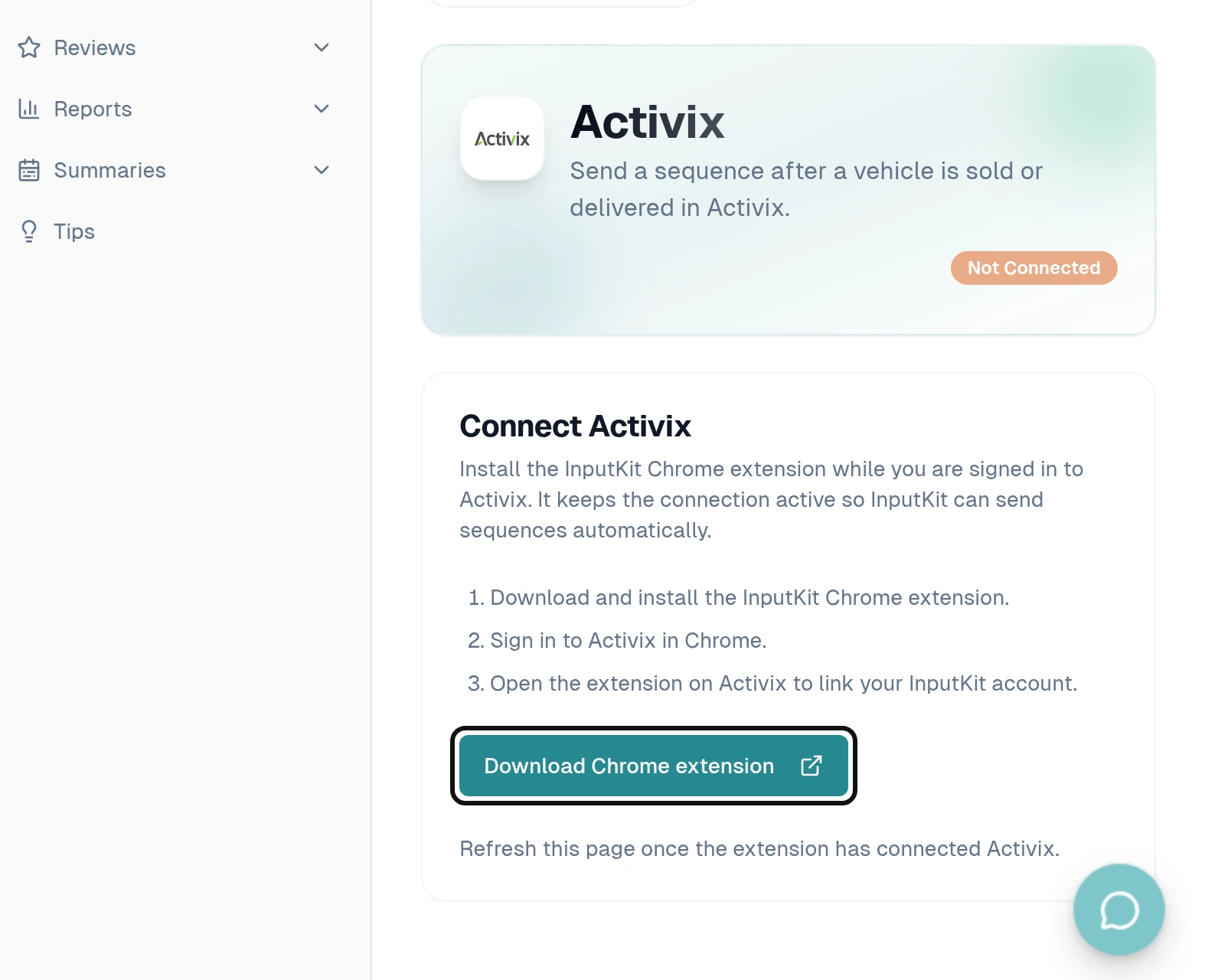
Sign in to Activix in Chrome.
Open the extension on Activix to link your InputKit account.
Return to the Activix page in InputKit and refresh it.
In Sequence triggers, select Add trigger.
Choose an Event for a sale or delivery of a new, used or any vehicle.
Choose the Sequence and Location.
Set the Delay (hours). Zero means immediately; for a future event, the delay is added to the event date.
Select Create trigger.
If the Activix session expires, open Activix in Chrome to refresh it. If Activix rejects the session, open Activix in Chrome and keep the tab open so the extension can send the session again.