How do I connect Acomba GO to InputKit?
Connect Acomba GO to use invoices and orders in InputKit.
Written by Philippe Genois
Connect your Acomba GO company so InputKit can use its invoices and orders.
Select Add integration, then choose Acomba GO.
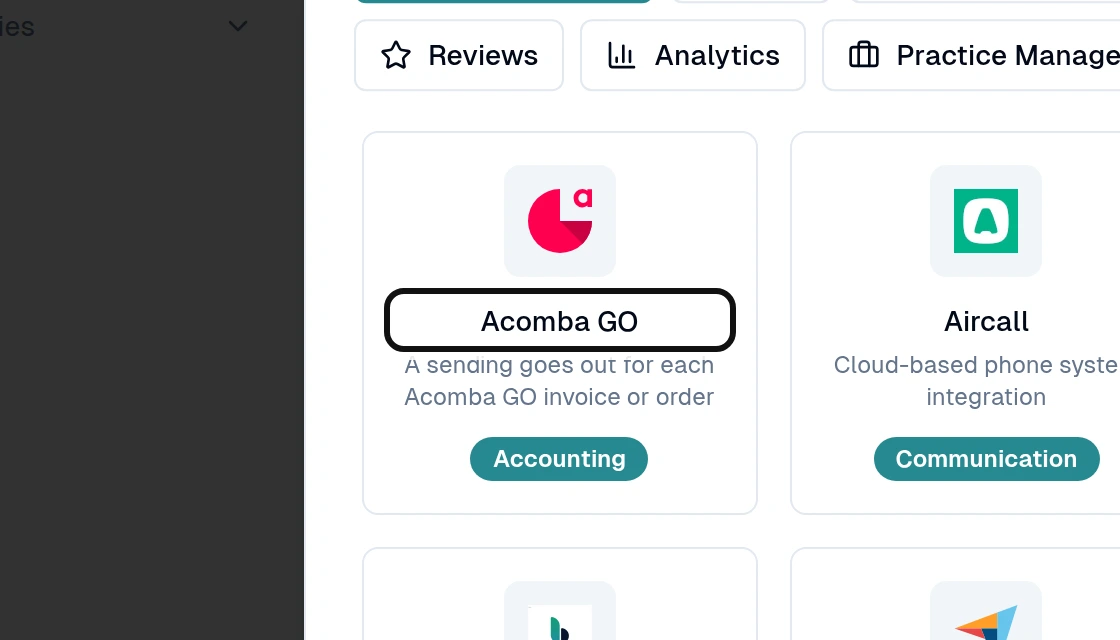
On the Acomba GO page, copy the InputKit development key.
In Acomba GO, open Configuration > Configuration compagnie > ACCEO Connecte > Gérer mes développeurs externes, and select Ajouter.
Paste the development key, check at least Clients and Transactions clients, and save.
Copy the identifier and secret key generated by Acomba GO. Find the ACCEO Connecte key under Configuration compagnie > ACCEO Connecte > Afficher ma clé ACCEO Connecte, and the company code under Information > Paramètres > Licence > Compagnie.
Back in InputKit, enter the four values in ACCEO Connecte key, Company code, Identifier and Secret key.
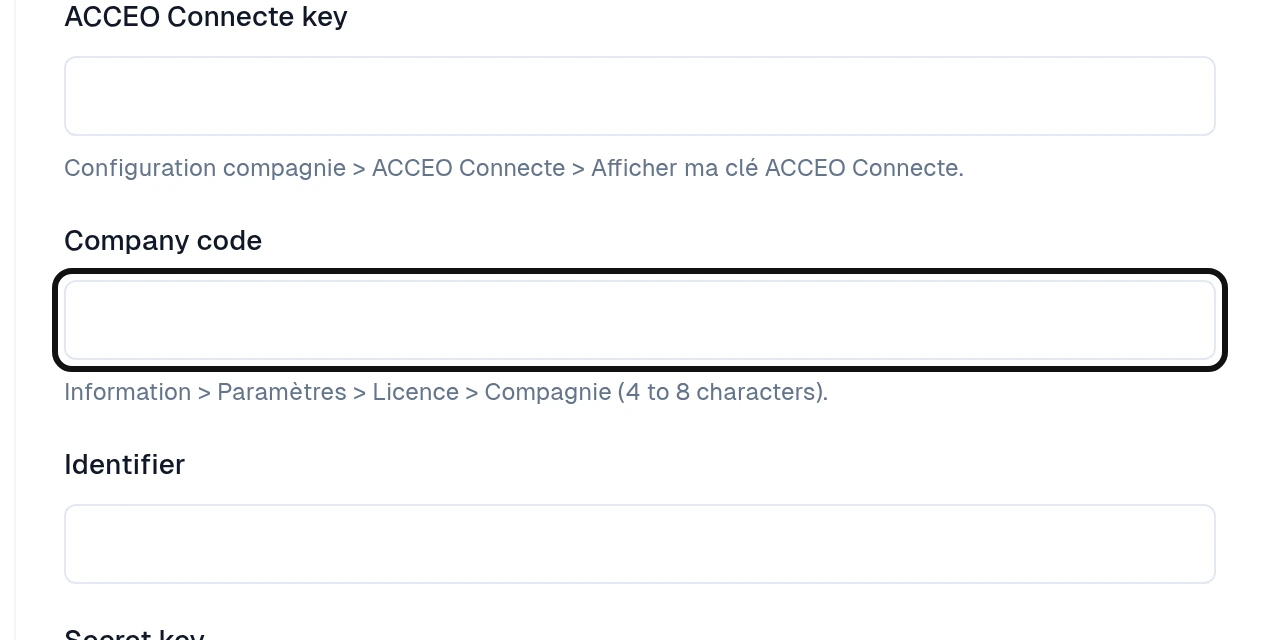
Select Connect.
The Acomba GO steps happen in your Acomba GO account. Once connected, create a trigger to send a sequence for invoices or orders.
Did this answer your question?