How do I send emails from my own domain with Mailgun?
Set up a sending domain and verify its DNS records.
Send email from your own subdomain after its DNS records are verified.
You need permission to manage integrations and access to your domain's DNS settings.
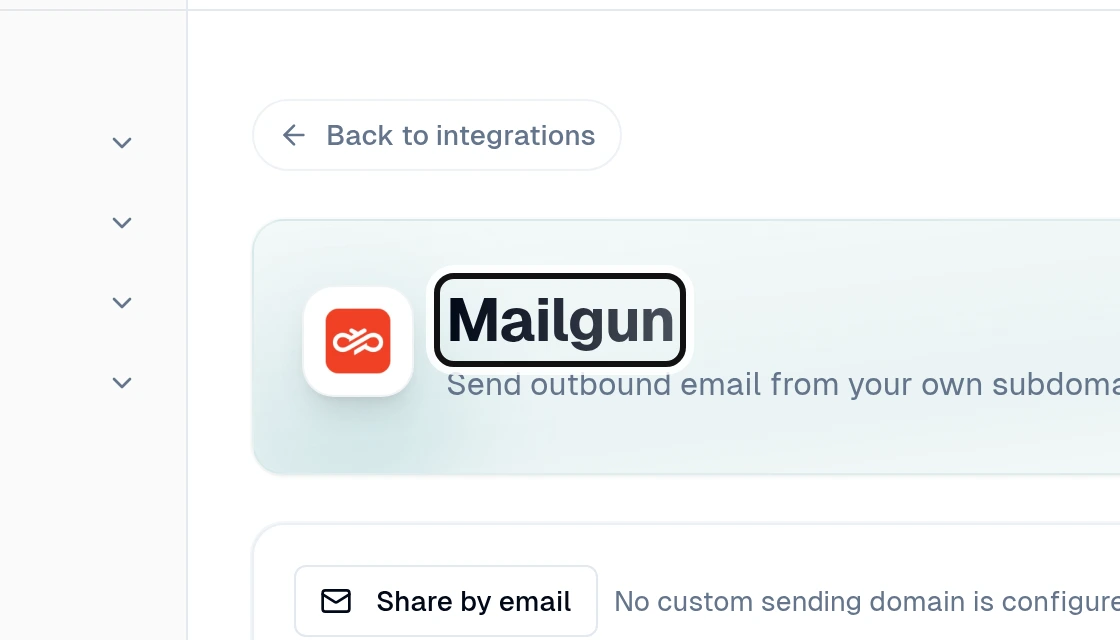
Open the Mailgun integration page.
Enter your subdomain in Sending hostname, such as
mail.northwind.example. Enter only the hostname, withouthttps://, a path or an @ sign.Select Register domain. A domain already used by another company cannot be attached.
Add the Sending DNS records and Receiving DNS records (MX) shown in InputKit to your DNS provider. Ask the person who manages your DNS if you need help.
After your DNS records have updated, select Refresh status. InputKit shows the status of each record and marks the integration Connected after verification.
Once verified, your sequence invitation emails and discussion replies use your domain. Until then, email uses the default InputKit domain. If automatic webhook setup fails after verification, select Add InputKit webhooks.
To remove the domain, select Remove domain and confirm. InputKit removes it from your workspace; if InputKit created it in Mailgun, it also removes it there.
Did this answer your question?