User management
The User management section allows you to add, edit, or remove users who have access to your InputKit platform.
Note: Only administrators can access this section and manage users. Other roles do not have the required permissions.
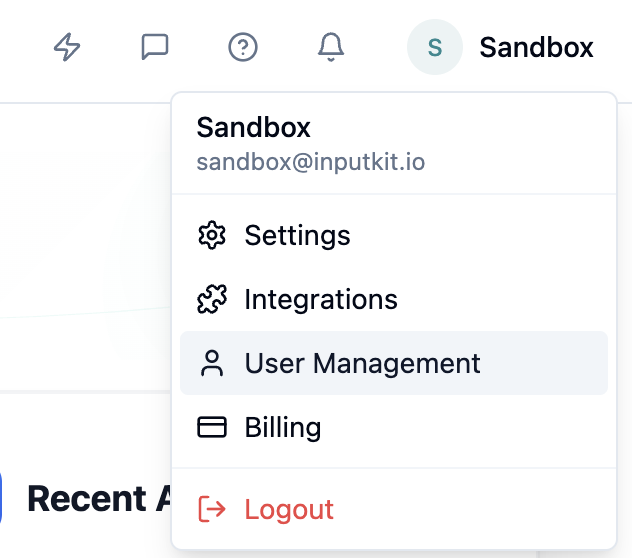
Access user management
Click your name in the top-right corner.
Select “User Management”.
You can then:
View all active users
Search for a user
Filter by role
View pending invitations (users who were invited but have not created their account yet)
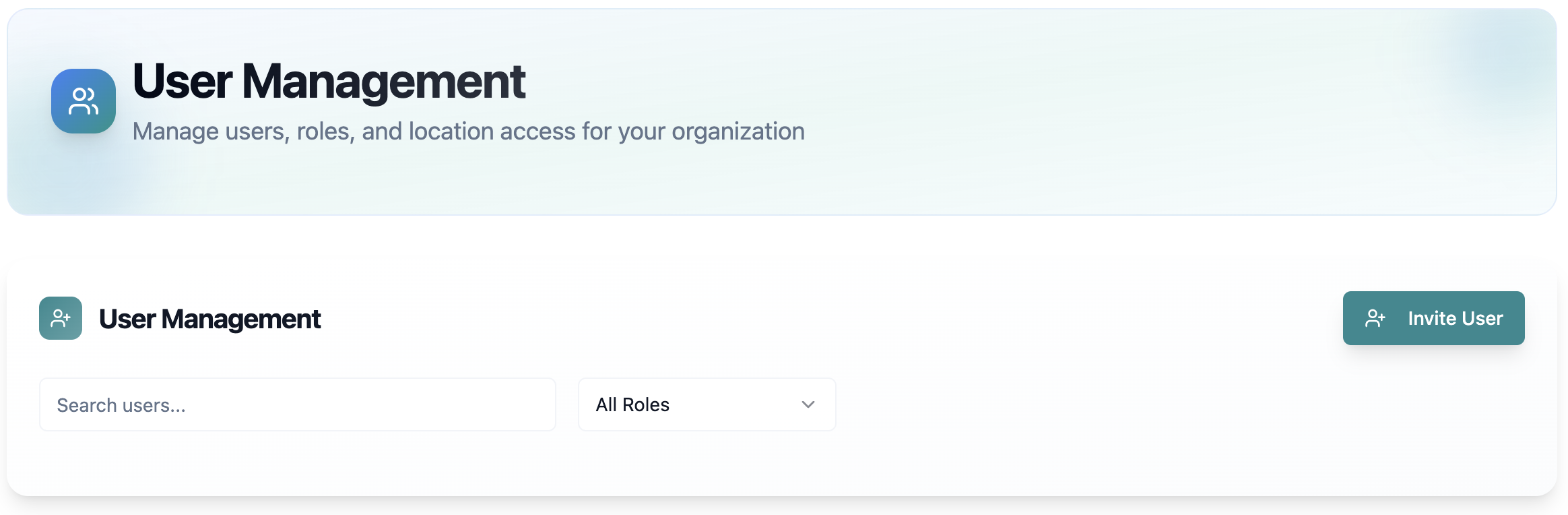
Add a user
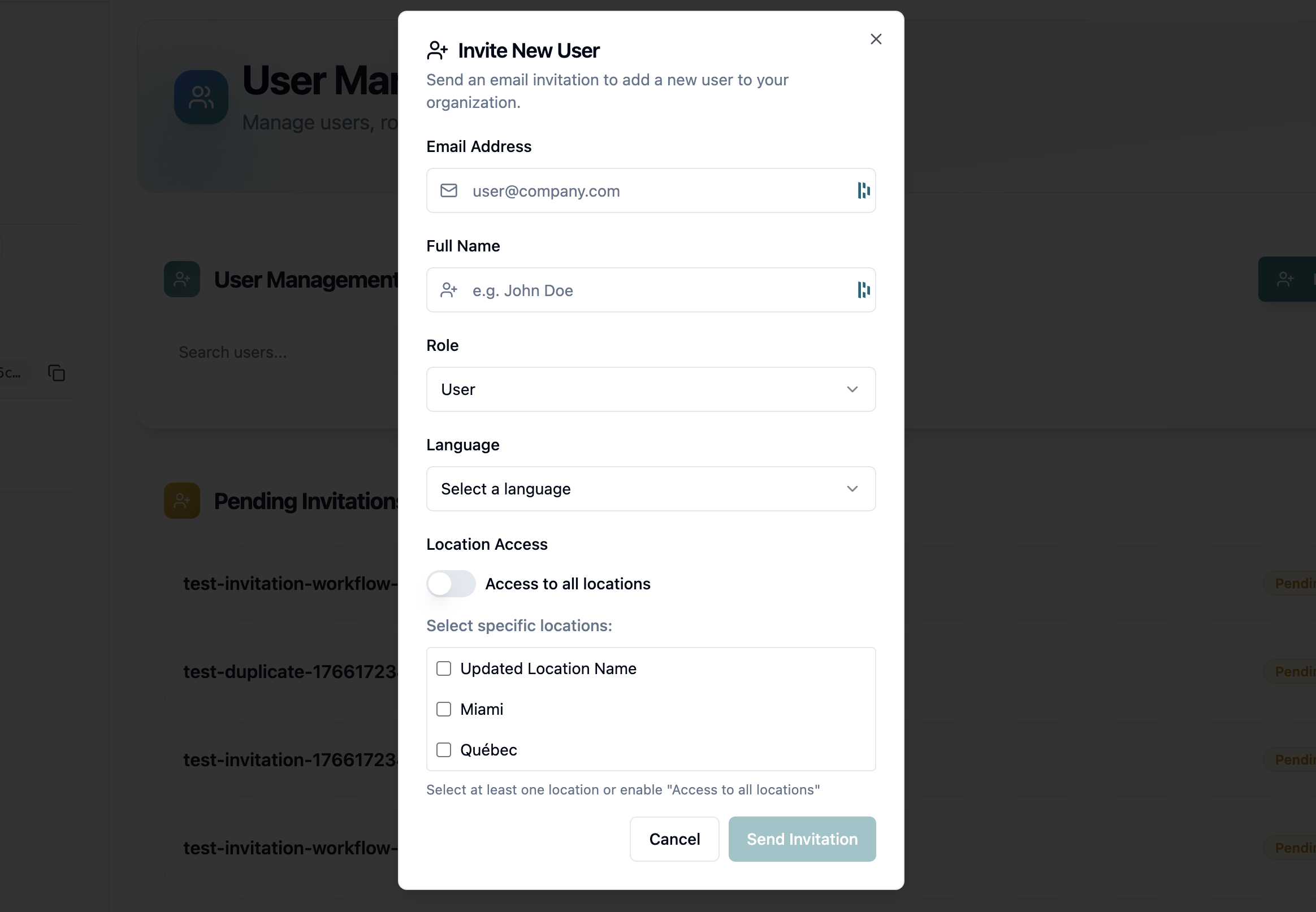
Click “Invite a user”.
Fill in the required fields:
Name
Email address
Select the user role from the dropdown menu. If you are not sure which role to choose, refer to this guide 👇
Select which locations the user can access.
Manage accessible locations
By default, the user has access to all locations.
To limit access:
Uncheck “Access to all locations”.
Select only the locations you want.
Edit a user
To edit an existing user:
Find the user in the list.
Click their role or the button related to locations to adjust their access.
Save your changes.

Remove a user
To remove a user:
Click the trash icon to the right of the user’s name.
Confirm the removal.
If you have any questions, feel free to contact us via the chat.