How do I share a client response within my organization?
Send a response to the people who need to see it.
Send a response to the people who need to see it.
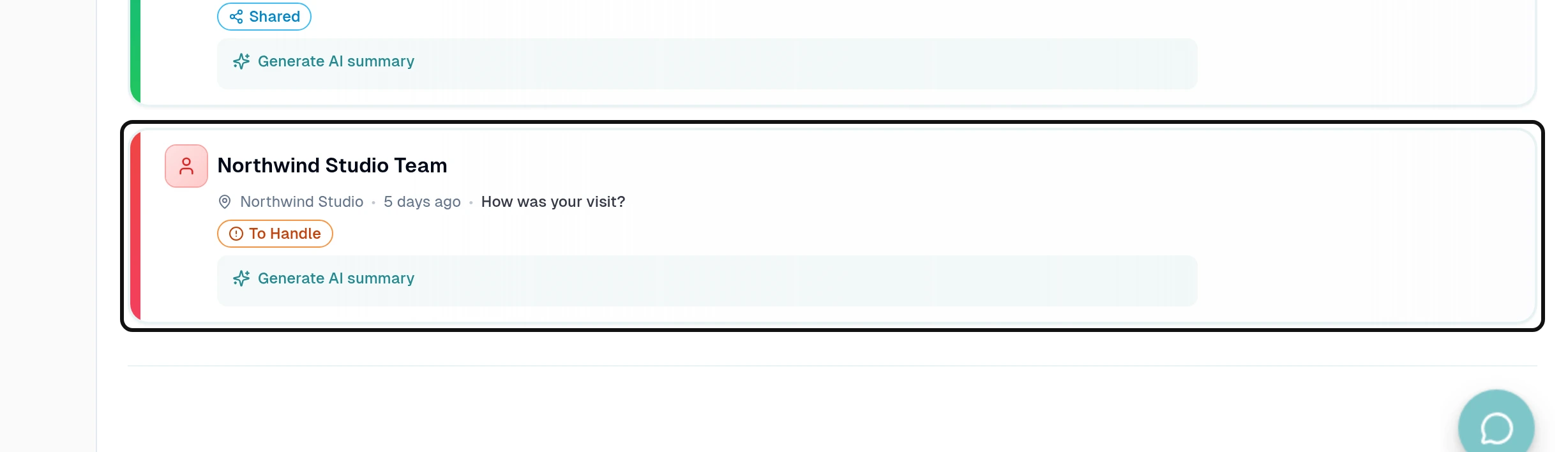
Select the response you want to share.
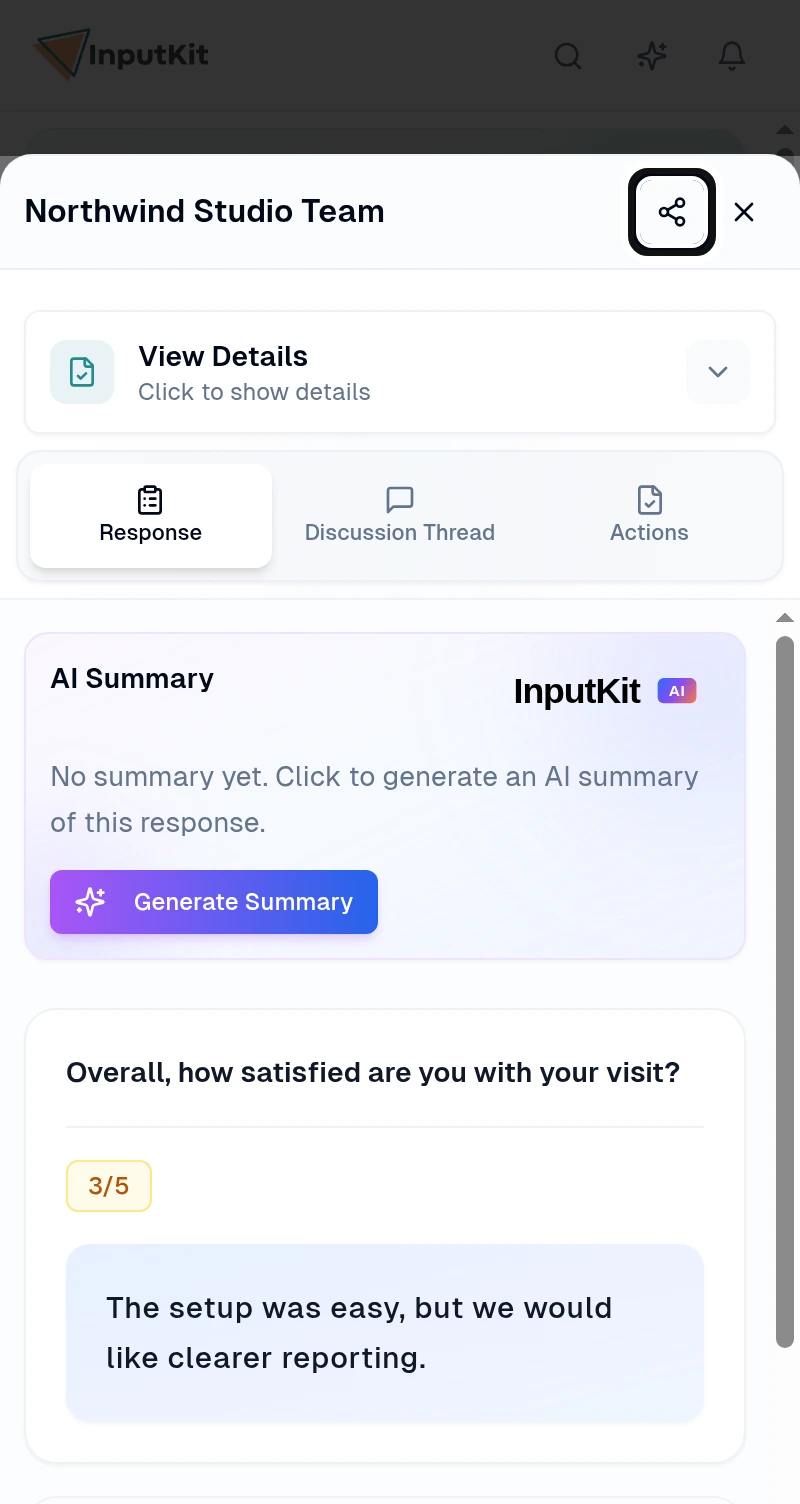
Select Share.
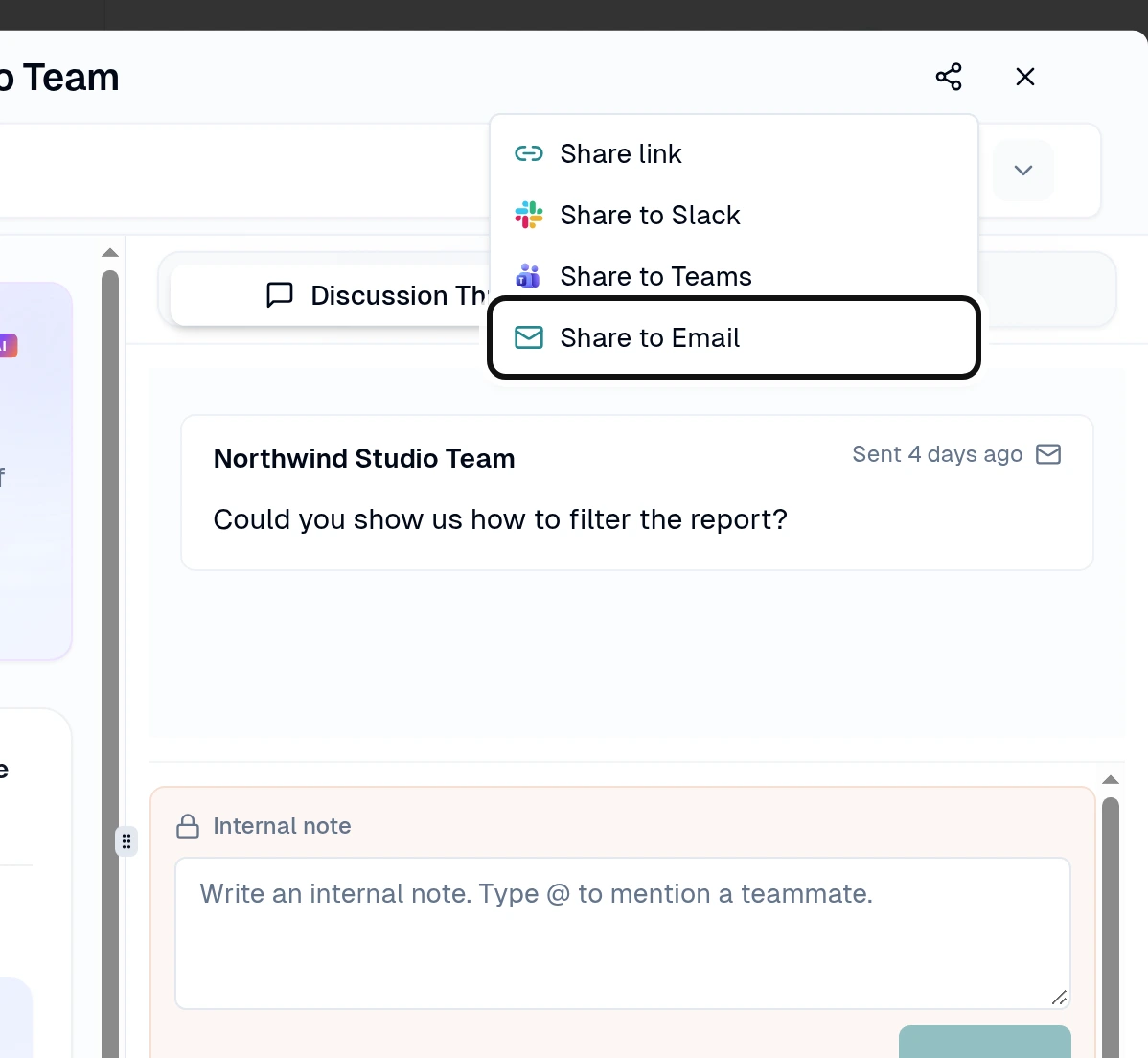
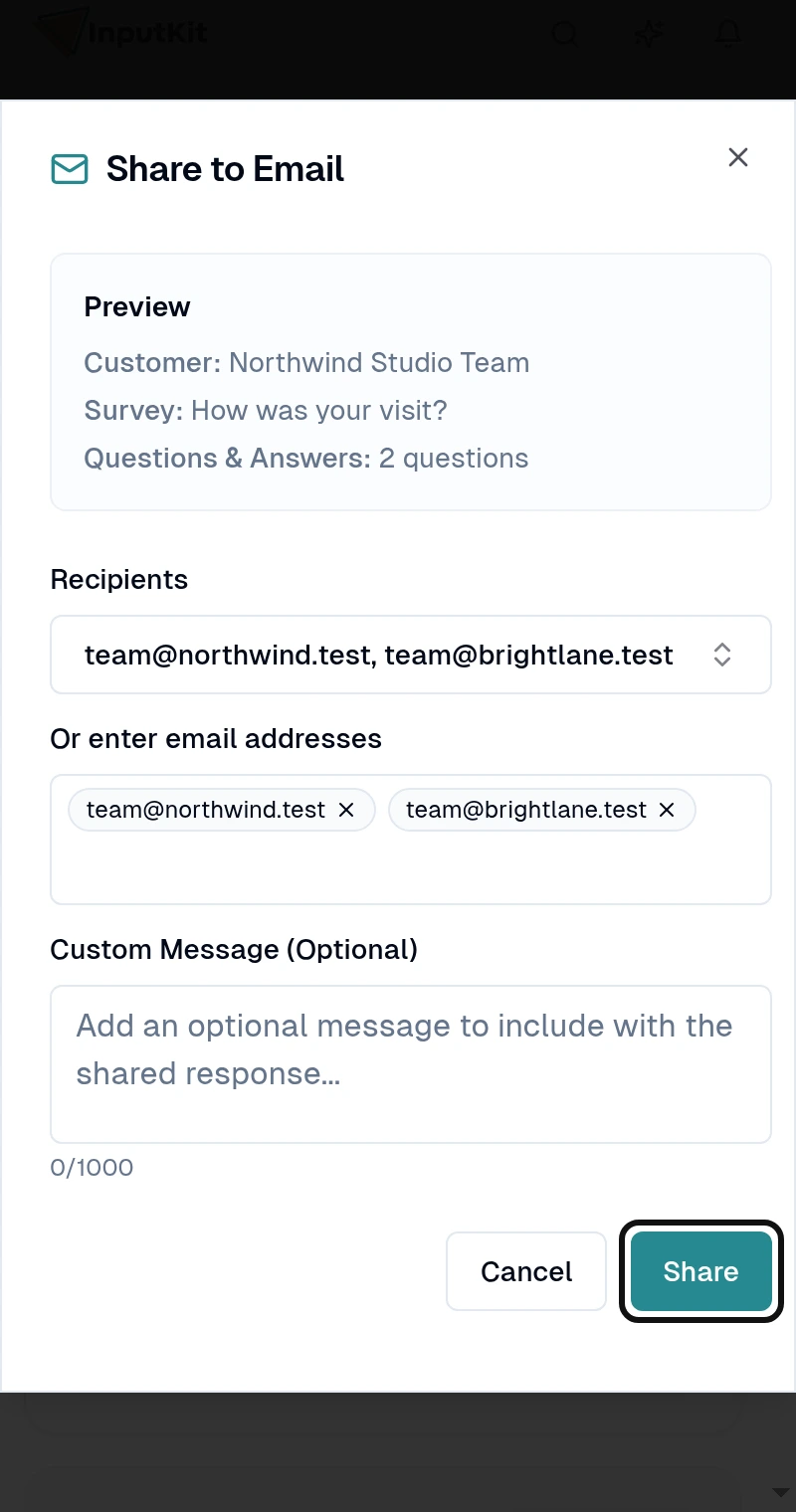
Select Share to Email.
Enter one or more addresses under Or enter email addresses. Separate them with a space, comma or Enter; each address becomes a chip. You can also use Choose from list.
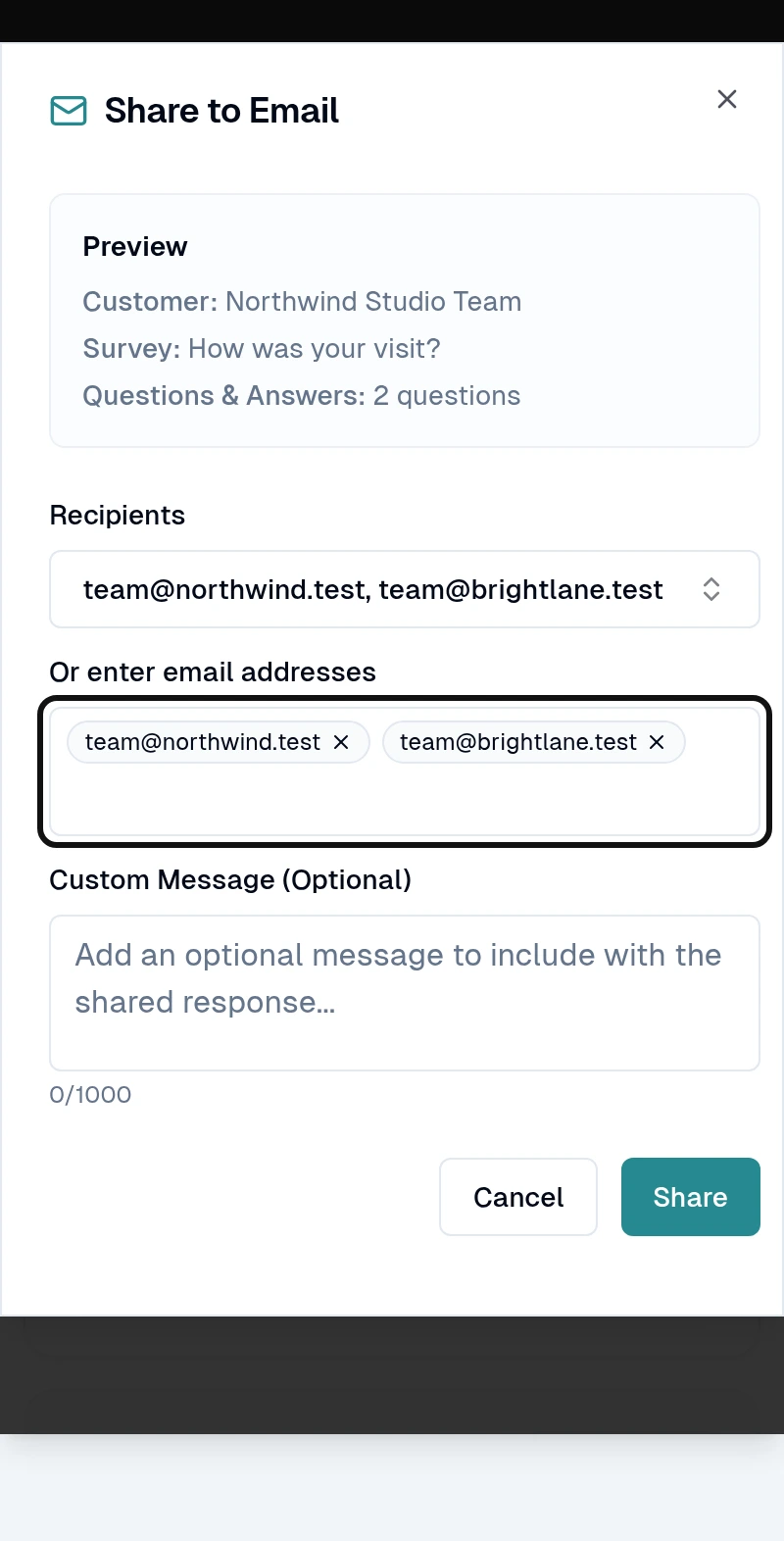
Select Share. You can add a Custom Message before sharing.
The response list shows Shared after a response is shared. Hover over or tap the label to see the date. The Share menu also offers a link, Slack and Teams.
Did this answer your question?
NoPartlyYes